
Halloween effect
A Halloween Warning Shot: Video or Still
Two ways to run the same scene. Take the five-second clip when the movement matters, or the cheaper vertical still when one frame is enough.
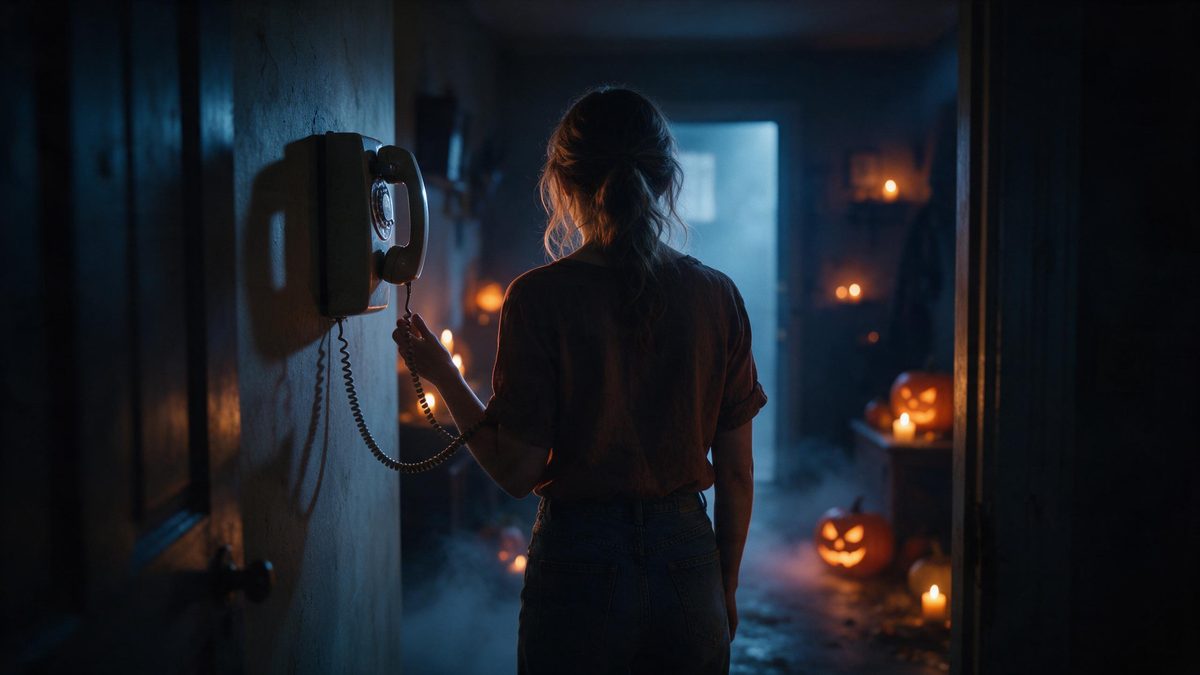
Don’t Look Back is built around a single idea, and it is offered in two shapes. Run it as a five-second 1080p video for 100 credits, in the aspect ratio of your photograph, or as a vertical 9:16 still for 20 credits. The input is identical either way: one photo containing one person, an anime character, or a pet, framed half-body or full-body.
What the effect produces is a warning scene rather than a costume: something behind the subject that the viewer notices before the person in the photograph does. Two limitations are recorded for it. Now and then a prop renders incomplete, and extra hands or feet can appear in the frame. Both are rendering artefacts rather than anything about the scene itself.
Specs at a glance
Straight from the product panel, not from a marketing deck.
- Output
- 5-second video, or a still image — the same effect both ways
- Credits
- 100 for the video, 20 for the still
- Resolution
- 1080p
- Aspect ratio
- Matches your input photo (still: 9:16 vertical)
- Input
- 1 photo — one person, an anime character, or a pet
- Best results with
- A half-body or full-body shot of one person
- Known limits
- Occasionally a prop can render incomplete, and extra hands or feet can appear.
What it does
Built for this specific job, not a generic editor.
Video or still from one photo
The same scene runs both ways: a 5-second 1080p clip for 100 credits, or a vertical 9:16 still for 20. One photograph covers both, so you can decide after seeing the first result. The cheaper still is the sensible way to test the scene first.
1080p in both shapes
Both outputs render at 1080p. The clip keeps the aspect ratio of your photograph, while the still is composed as a 9:16 vertical frame ready for stories and short-form feeds without any editing. Both are 1080p, so neither loses detail at posting size.
Three kinds of subject
Upload one image with one person, an anime character, or a pet. That is the same wide input range the other dual-output effect in this set accepts, and it covers artwork as well as ordinary photography.
Tension without anything explicit
The scene works by what the viewer notices behind the subject rather than by anything shown directly. That keeps it suitable for audiences you do not know especially well, and nothing graphic appears. That is what makes it usable in a mixed group thread.
How it works
Four steps, no timeline to learn.
Pick the source photograph
Choose one image with a single person, an anime character, or a pet, framed half-body or full-body. A plain background helps, since props can now and then render incomplete in a busy frame.
Upload it
Open Don’t Look Back and add the photograph. The setting, the lighting and whatever sits behind the subject are produced inside the render, so nothing has to be staged or lit first.
Choose video or still
Take the five-second clip at 100 credits, or the 9:16 still at 20 credits. The price for whichever you select is displayed on the confirmation step before anything at all is spent.
Download and use it
Save the file and post it. The still suits a thumbnail or a profile image, the clip suits a story, and both can be generated from the same single photograph. Keep them together.
Where people use it
The jobs this effect actually gets used for.
A thumbnail and a clip
Render the 20-credit still for the thumbnail and the video for the post itself. One photograph covers both placements, and the cheap still tells you whether the scene suits your source at all.
Illustrators and character art
Anime character art is an accepted input here, so an existing drawing can be placed into a Halloween scene without drawing a background or a second pose for it. Keep the source artwork clean.
Posts that get forwarded
The scene implies rather than shows anything graphic, which makes it easier to share in community groups and workplace threads where the audience is mixed. Add your own caption underneath.
Vertical story sequences
The 9:16 still lines up with the other vertical Halloween images in this set. Keep the source photograph constant and a sequence of them reads as one planned piece rather than scattered uploads.
Why the warning structure works
The viewer sees it first; that is the whole trick.
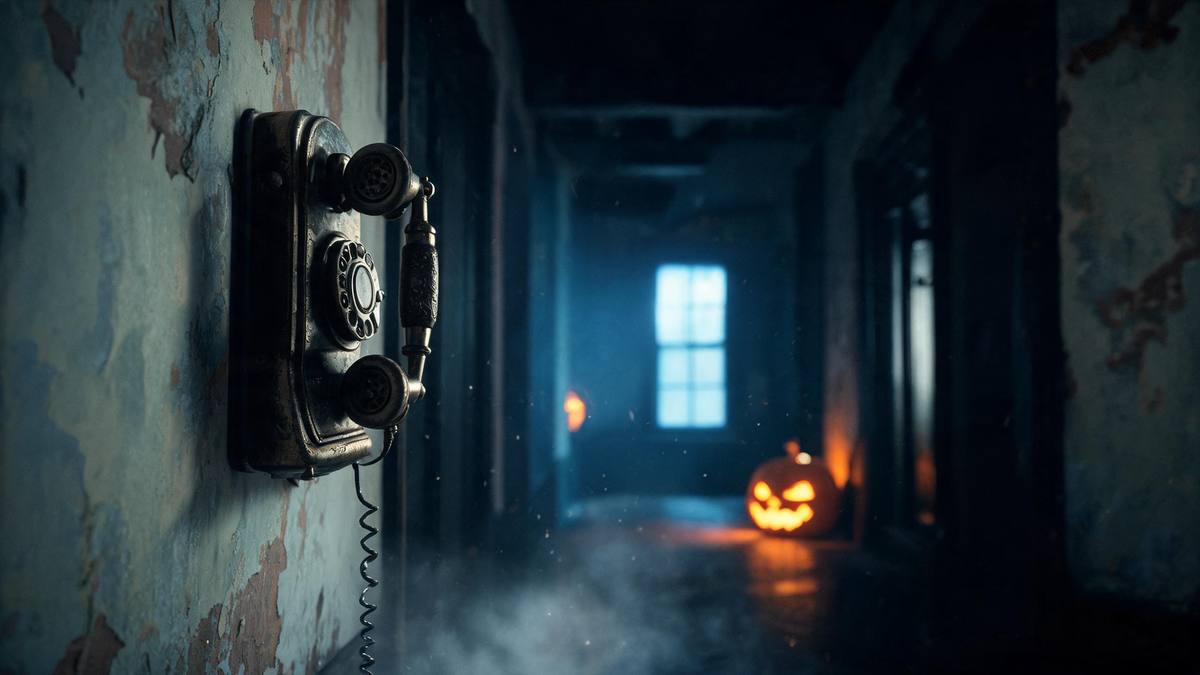
The scene has one moving part, and it is in the viewer rather than in the footage. Something is behind the subject, the person in the photograph has not noticed it, and the audience has. That gap is what produces the effect, and it is why the idea survives being cut down to five seconds. There is no setup to get through before the point lands, because the point is the frame itself.
The dual output matters more than it looks. A five-second clip at 100 credits is right when the movement is the point; a 9:16 still at 20 credits is right when you want an image for a thumbnail, a story card or a profile. It also costs a fifth as much. Because both take the same photograph, you can start with the still and only then decide on the clip.
Two limitations are recorded, and they are rendering artefacts rather than problems with the idea. A prop can now and then be left incomplete, and extra hands or feet sometimes appear in the frame. A plain background and a clean half-body or full-body shot of one subject reduce both. Neither changes the resolution: every run is 1080p, in whichever of the two shapes you picked. Running the same photograph again rarely repeats the same artefact.
Credits and plans
Every effect draws on one shared credit balance.
This effect is priced two ways: 100 credits for the 5-second video and 20 credits for the 9:16 still, with the figure for your choice shown before you confirm. Every effect draws on the same balance. A Free plan carries 30 credits per month and needs no card; beyond that Starter is $9 for 400 credits, Pro $19 for 1,000 and Studio $59 for 4,000.
Related guides
Longer reads on the same workflow, from the OpenFilmo blog.
Image to Video AI: Animate Any Photo in Seconds
A complete guide to image to video AI: what makes a good source image, how to write motion prompts, top use cases, and how to fix …
AI Video Prompt Formulas That Hold Up in Production
Prompt structures that work for AI video: subject, motion, camera, time and style — with tested formulas, failure patterns and a m…
AI Content Labeling Rules: What You Must Disclose in 2026
What AI content labelling rules require: what to disclose, where human review is mandatory, and how platform rules differ from law…
Related effects
Same family of effects, on the same kind of input.
Frequently asked questions
What is the difference between the two outputs?
The video is a five-second 1080p clip that keeps the aspect ratio of your photograph and costs 100 credits. The still is a single 1080p image composed as a vertical 9:16 frame for 20 credits. Both take the same photograph, so you only ever upload once.
What can I upload?
One photo containing one person, an anime character, or a pet, framed half-body or full-body. A plain background helps, because props can now and then render incomplete in a busier frame. A single clearly framed subject gives the render the most to work with.
How many credits does each option cost?
One hundred for the video and twenty for the still, with the figure shown on the confirmation step before anything is spent. Free accounts receive 30 credits monthly without a card being required. The still is the cheaper way to see whether the scene suits you.
What goes wrong sometimes?
A prop can now and then be left incomplete, and extra hands or feet can appear in the frame. Both are rendering artefacts rather than anything about the scene, and a cleaner source reduces them. Neither affects the resolution or the length of the finished clip.
Is the still vertical?
Yes. The still is composed as a 9:16 vertical frame at 1080p, which suits stories and short-form posts. The video instead follows the aspect ratio of the photograph you uploaded. Pick between them based on where the file will end up.