
Visual effect
Send One Person Back to the Jurassic
One half-body portrait against a plain background is the entire input. OpenFilmo returns a 5-second 1080p clip of that person standing in deep prehistory.
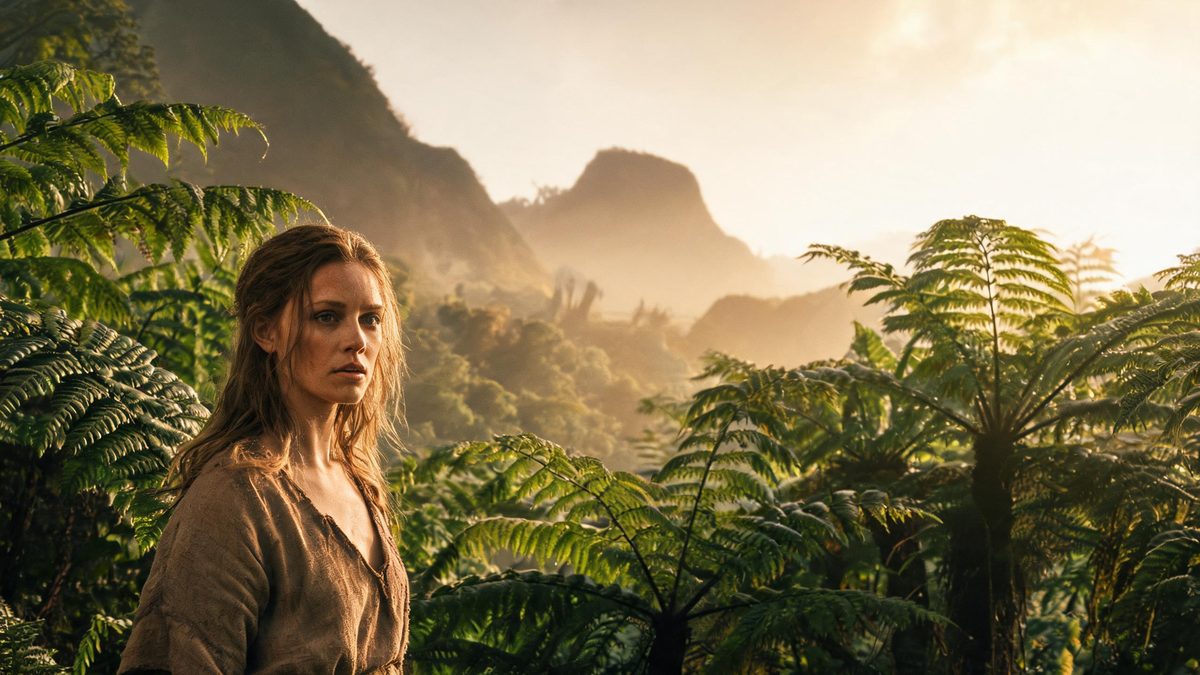
Prehistoric settings are the most requested kind of backdrop and the least obtainable: there is no location, no reference photography, and nothing to shoot. Building one by hand means matte work, a great deal of research, and an editor willing to spend a day on a few seconds. This template produces the setting around the photograph instead, so the work happens in the render rather than on a timeline.
Each run costs 80 credits and produces a 5-second video at 1080p in 9:16, 16:9 or 1:1. The input is one photograph of one person, and a high-resolution half-body shot against a simple background is the recommended source. As with the others in this family, two limits are documented: a busy background can weaken the result, and the subject occasionally disappears.
Specs at a glance
Straight from the product panel, not from a marketing deck.
- Output
- 5-second video
- Credits
- 80 per run
- Resolution
- 1080p
- Aspect ratio
- 9:16, 16:9 or 1:1
- Input
- 1 photo — one person only
- Best results with
- A high-resolution half-body shot of one person against a simple background
- Known limits
- A busy background can weaken the result, and the subject occasionally disappears.
What it does
Built for this specific job, not a generic editor.
A setting that cannot be visited
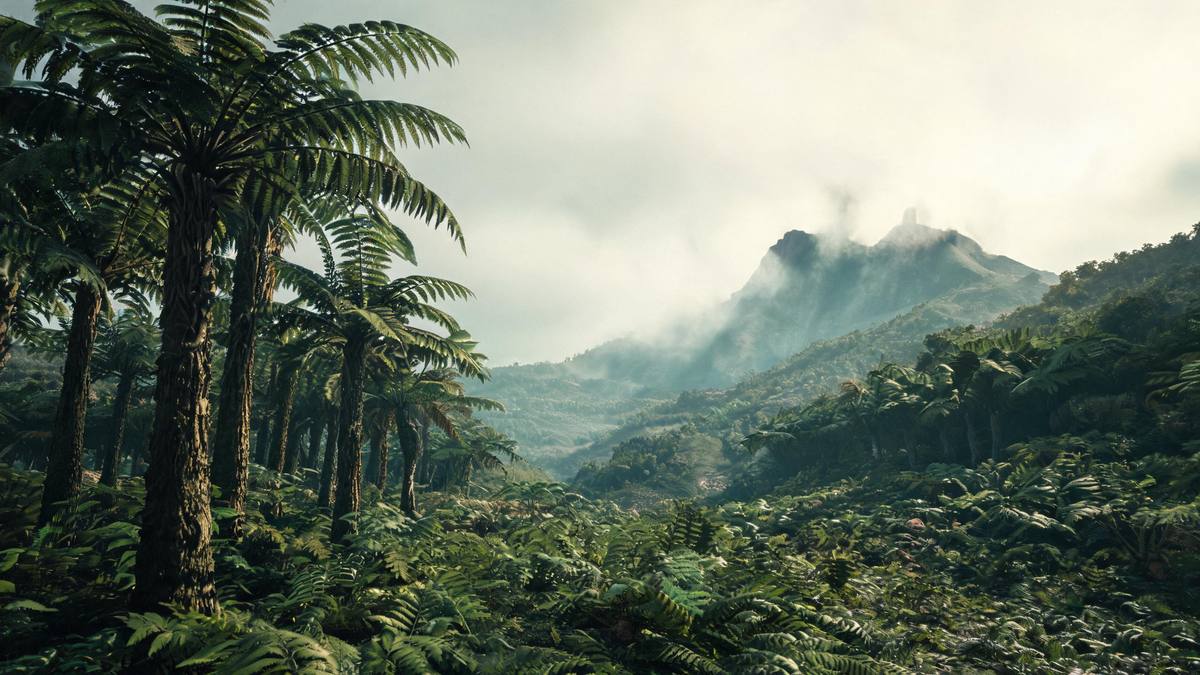
The environment is generated rather than photographed, which is the only practical way to put a real person into deep prehistory. There is no location fee, no permit, and nothing to reconstruct by hand.
The sharpest file in this collection
At 1080p and five seconds, the output sits above the 720p clips here. It holds up in an embedded player and on a screen in a room, where a smaller file would soften.
Frame shape chosen up front
Select 9:16, 16:9 or 1:1 before rendering, so the clip arrives shaped for a story, a wide post, or a square grid slot without a crop afterwards.
Designed for one person
A single subject in a half-body frame is what the template is built around. Everything else about the result follows from how cleanly that figure is separated from what is behind it.
How it works
Four steps, no timeline to learn.
Pick a high-resolution half-body frame
Choose one person, framed from around the waist up, in a sharp photograph. Resolution and framing in the source carry directly into a 1080p output.
Simplify what is behind them
A plain background is what the effect asks for. Busy surroundings can weaken the result, and a poorly separated subject can disappear during the render.
Select the output shape
Decide between 9:16, 16:9 and 1:1 according to where the clip will be seen, and set it before adding the photograph.
Confirm the run at 80 credits
The cost is displayed before you confirm. Check the balance, add credits if it is short, and start it. Nothing is spent until you agree to the figure displayed.
Where people use it
The jobs this effect actually gets used for.
Museum and education channels
A presenter or educator photographed once can be placed into a prehistoric setting, which gives a channel imagery it could not otherwise afford to produce.
Event and launch openers
Five seconds at 1080p works as the first thing on a page, where a static portrait would not hold anyone long enough to read the headline.
Vertical story sets
The 9:16 option fills a phone screen, and the generated environment gives the frame depth behind the subject rather than a flat backdrop.
Family and personal clips
A photograph of one person becomes a short piece of motion that is more surprising than the still, which is most of what makes it worth sending.
What separates a good render from a weak one
Source resolution, background simplicity, and the right frame shape.
The templates in this family share the same input requirement and the same two limits, so the quality of a result comes down almost entirely to the photograph chosen. A high-resolution half-body shot of one person against a simple background is what they ask for, and each part of that sentence is doing work. High resolution gives the render detail to carry into a 1080p file. Half-body framing makes the person large enough to hold clearly. A simple background removes the hardest part of the job, which is deciding where the subject ends.
Where those conditions are not met, the documented limits appear. A busy background can weaken the result, because the render has to invent an edge between the person and a complicated space, and a wrong edge shows immediately at 1080p. The subject occasionally disappears, which happens more often when the figure is small, low-contrast, or cluttered around. These are not faults in the photograph so much as a mismatch between the photograph and what the effect needs from it.
The frame shape is the last decision, and it should be made from the destination rather than the source. 9:16 fills a phone story completely, 16:9 suits a feed post, an embedded player or a screen in a room, and 1:1 suits a square slot in a grid. All three are available from the same photograph at the same price, so there is no reason to render one and then crop it. At 80 credits a run is a considered purchase rather than an experiment, which makes choosing the shape carefully worth doing beforehand.
Credits and plans
Every effect draws on one shared credit balance.
A Jurassic render costs 80 credits, shown on the confirmation screen before anything is spent, and it draws from the balance every OpenFilmo effect shares. Free accounts get 30 credits monthly with no credit card required. Starter is $9 for 400, Pro is $19 for 1,000, and Studio is $59 for 4,000.
Related guides
Longer reads on the same workflow, from the OpenFilmo blog.
Image to Video AI: Animate Any Photo in Seconds
A complete guide to image to video AI: what makes a good source image, how to write motion prompts, top use cases, and how to fix …
Text to Video AI: Turn Any Prompt Into Video
Learn how text to video AI works, the four-part prompt formula that produces usable clips, how to fix common failures, and where i…
Best AI Video Generators 2026: 15 Tools Tested
We tested 15 AI video generators on the same prompts and ranked them for 2026. Compare quality, speed, credit pricing and commerci…
Related effects
Same family of effects, on the same kind of input.
Frequently asked questions
What is the price of one run?
80 credits, displayed before you confirm. The cost covers the 1080p output and the five-second length, both above the other templates here. Free accounts receive 30 credits a month with no card.
Which photograph works?
One person, shot half-body at high resolution against a simple background. The template is specific about this because a busy background can weaken the result and the subject occasionally disappears.
What resolution and length do I get?
A 5-second video at 1080p, in 9:16, 16:9 or 1:1. All three shapes are available from the same photograph, and the choice is made before the run rather than by cropping afterwards.
Can I upload two people?
No. The input is one photograph of one person. Additional subjects are not rendered as intended, so pick a frame with a single, well-separated figure.
Why did the result look weak?
A busy background is the documented cause. Complicated surroundings make the edge between the subject and the setting harder to establish, and the clip suffers for it. A plainer source photograph is the usual fix.