
AI Tutorial Video Prompts for Clean Instructional B-Roll
A tutorial video prompt describes the clean, well-lit scene between your steps: overhead desks, blank whiteboards, tidy workspaces. Screens stay blank on purpose.
These AI tutorial video prompts cover the connective tissue of instructional video: the overhead desk shot, the whiteboard moment, the workspace wide. They are written for B-roll around your real screen recordings, and every screen is deliberately blank because generated UI is unreadable at best.
Tutorial viewers tolerate average cameras but not average lighting. Clean top light, a tidy surface and a locked or slowly drifting camera are what make an instructional clip feel produced. The recipes below bake those in, grouped by the shot type each tutorial stage needs.
The core idea
Four principles behind every prompt on this page.
Screens stay blank
Never ask the model to render an interface. Screen-record real UI; use generated scenes for everything around it.
Top light, tidy surface
Overhead soft light with an organized desk is the tutorial look. Shadows and clutter read as unprepared.
Locked or slow
Instructional B-roll should never distract: locked frames or a slow drift keep attention on the steps.
Hands only when generic
Hands demonstrating are fine when generic; they generate cleanly at typing, pointing and writing distance.
Step-by-step
The order that keeps you from debugging five things at once.
Map your stages
Intro, concept, demonstration, recap — each stage has a matching B-roll group below.
Copy a prompt
Use the Copy button. Each line names the scene, the light and the camera behavior.
Generate the set
A clip costs 5 credits and Free covers about six a month — enough for one tutorial's full B-roll spine.
Pair with screen recordings
Cut generated scenes against your real UI captures; the generated shots carry transitions and breathers.
Export and narrate
Export with no watermark on Free, then time your voiceover and subtitles in the workspace.
Prompt recipes
Paste as-is, then swap the subject for yours. Use Copy on any card.
Overhead workspace
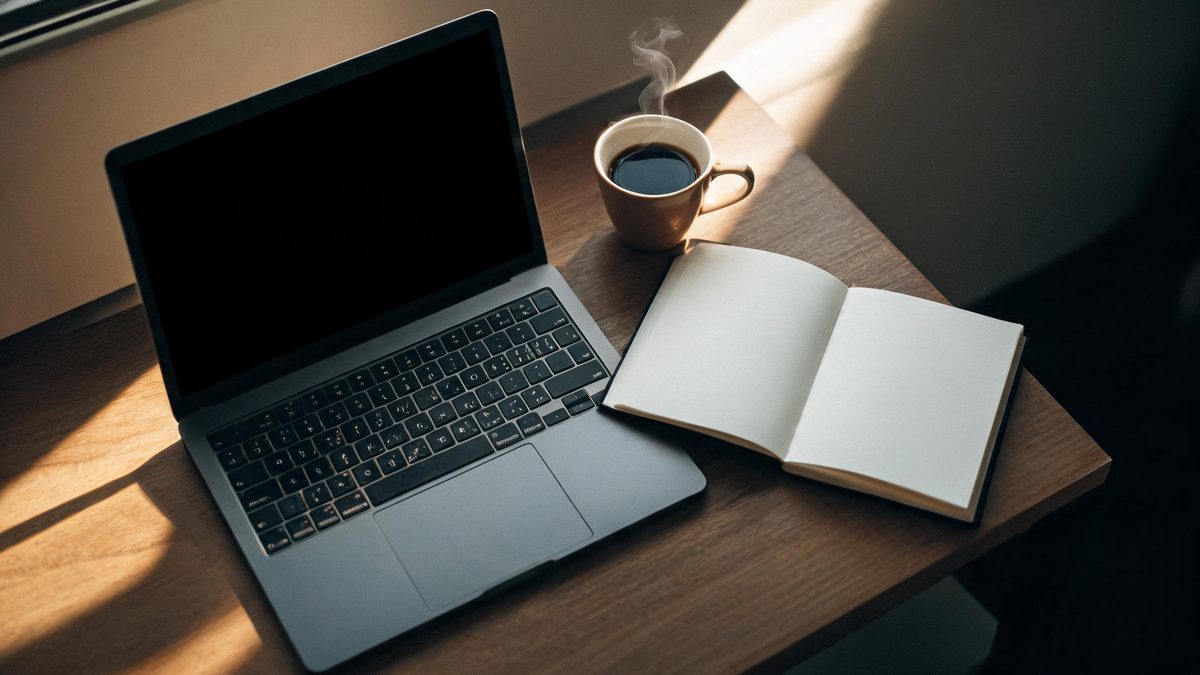
Overhead shot of a tidy desk with a laptop showing a blank screen, an open notebook and coffee, soft even daylight, five seconds.
Why it works: The overhead desk is the universal tutorial establishing shot, and blank screens cut cleanly against real UI.
Whiteboard concept
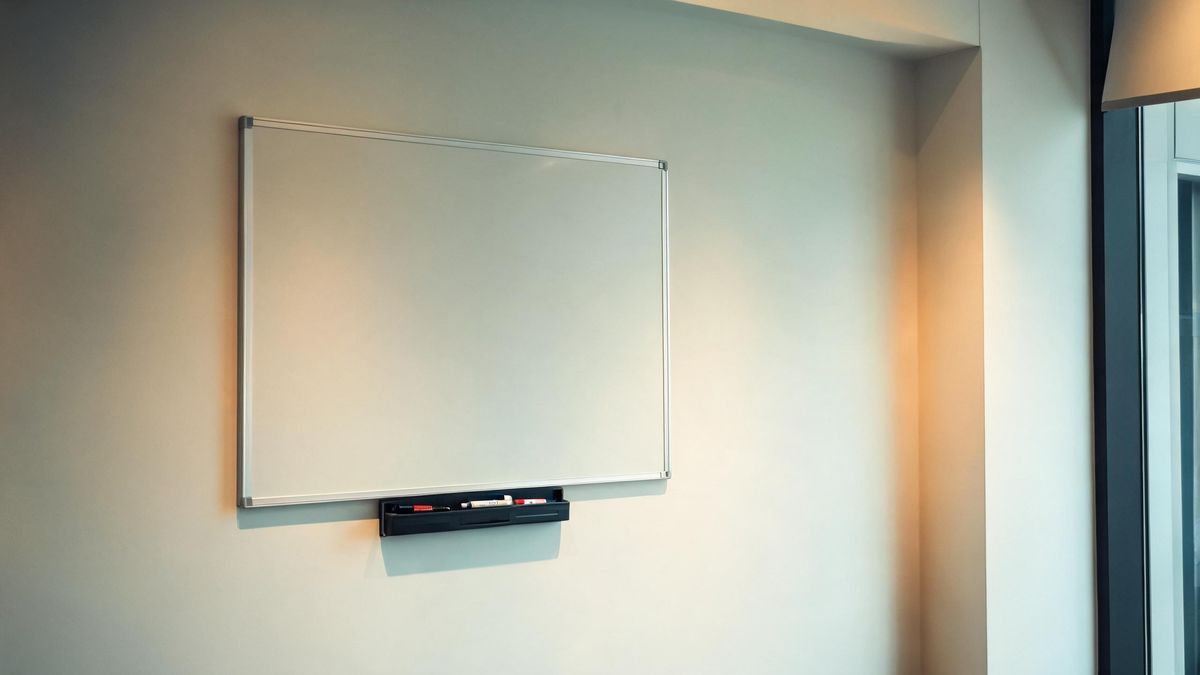
Slow push-in on a clean blank whiteboard on a bright wall, a hand entering to point at the empty surface, even light, five seconds.
Why it works: A blank whiteboard with a pointing hand sets up any concept section — you overlay the actual diagram in the editor.
Typing close-up
Close-up of hands typing on a laptop keyboard, warm desk lamp, plant bokeh in the foreground, slow drift, five seconds.
Why it works: Typing B-roll bridges every "now we implement" moment, and hands-on-keys generate with minimal warp.
Notebook plan
Top-down shot of a hand sketching boxes in a notebook beside a coffee cup, soft window light, steady overhead, five seconds.
Why it works: The planning shot carries your intro before the screen recording starts, and sketching motion is model-reliable.
Books and context
Static shot of a stack of reference books beside a laptop in warm library-style light, dust motes in the air, five seconds.
Why it works: A context shot adds authority to the research section and dust motes animate the frame for free.
Sticky wall
Slow pan across a wall of blank sticky notes in even daylight, a hand placing one more, tidy home office, five seconds.
Why it works: Blank stickies read as planning without inventing text, and the placing hand gives the shot a beat.
Coffee break beat
Close-up of coffee being stirred in a mug beside a notebook, steam rising, warm side light, locked camera, five seconds.
Why it works: The pause beat between sections keeps pacing human, and steam plus stir is easy, stable motion.
Recap wide
Slow pull-back from a tidy desk with a laptop, notebook and plant to a wide of the whole workspace, evening lamp light, five seconds.
Why it works: A pull-back signals "wrap up" visually — the cleanest closing beat a tutorial can use.
Common mistakes
The ones that account for most weak results.
Asking for UI
Generated interfaces are unreadable pixel soup. Real screens come from a recorder; generated screens stay blank.
Distracting camera moves
Tutorials teach — the camera should not perform. Keep B-roll locked or drifting slowly.
Cluttered desks
Visual noise competes with the diagram or the step. Specify "tidy" and name only two or three props.
Cold flat light
Overhead office fluorescence flattens everything. Ask for soft window light or a warm desk lamp instead.
Why blank screens are a feature
Generated UI is the fastest way to look fake. Blank screens plus real recordings is how instructional video stays credible.
A model asked to render an interface produces plausible-looking nonsense — buttons that mean nothing, menus that were never real. Viewers spot it instantly and the tutorial loses authority. The professional pattern is to generate the scene around the screen and record the real one.
B-roll does the pacing work. Tutorials fail when the screen recording runs unbroken for minutes; a clean desk shot, a notebook beat or a coffee pause resets attention between steps. Those shots used to need a second camera angle — now they are prompts.
Lighting is teaching hygiene. Even, soft light keeps the viewer's eye on the step instead of fighting glare, and it matches the brightness of your screen recording so cuts do not flash. Name the light in every prompt and the edit assembles itself.
Practise it in OpenFilmo
Every recipe on this page runs in the same workspace.
One image costs 2 credits and a 4K upscale costs 4. The Free plan gives you 30 credits every month with no credit card, no watermark and commercial use included — roughly fifteen images before you pay anything. Paid plans start at $9 for 400 credits and add faster generation and parallel tasks.
Related guides
Longer reads on the same workflow, from the OpenFilmo blog.
Text to Video AI: Turn Any Prompt Into Video
Learn how text to video AI works, the four-part prompt formula that produces usable clips, how to fix common failures, and where i…
AI Video Prompt Formulas That Hold Up in Production
Prompt structures that work for AI video: subject, motion, camera, time and style — with tested formulas, failure patterns and a m…
Character Consistency in AI Video: What Actually Works
How to keep characters consistent across AI video shots: reference images, prompt discipline, key frame locking and post-hoc corre…
AI Content Labeling Rules: What You Must Disclose in 2026
What AI content labelling rules require: what to disclose, where human review is mandatory, and how platform rules differ from law…
Related prompt collections
More copy-ready prompt sets on the same problem.
Frequently asked questions
Can I generate the app interface?
No — generated UI is unreadable and misleads viewers. Screen-record the real product and use these prompts for the scenes around it.
What does a tutorial B-roll clip cost?
A five-second clip costs 5 credits. Free includes 30 credits a month — about six clips — with no watermark and commercial use cleared.
Can hands appear in the clips?
Yes, generic hands at typing, pointing or writing distance generate cleanly. Avoid close-up faces for consent and quality reasons.
How do I keep cuts consistent with my recording?
Name soft window light or a warm lamp in the prompt to match your recording setup, and keep every B-roll camera locked or drifting slowly.
Where does narration come from?
Record it or generate it with the voiceover tool in the workspace — it times narration to the cut, and subtitles come from the same project.