
Turn a Portrait Into a Talking Avatar
One photo becomes the speaker. The script becomes the voice. The clip does the rest.
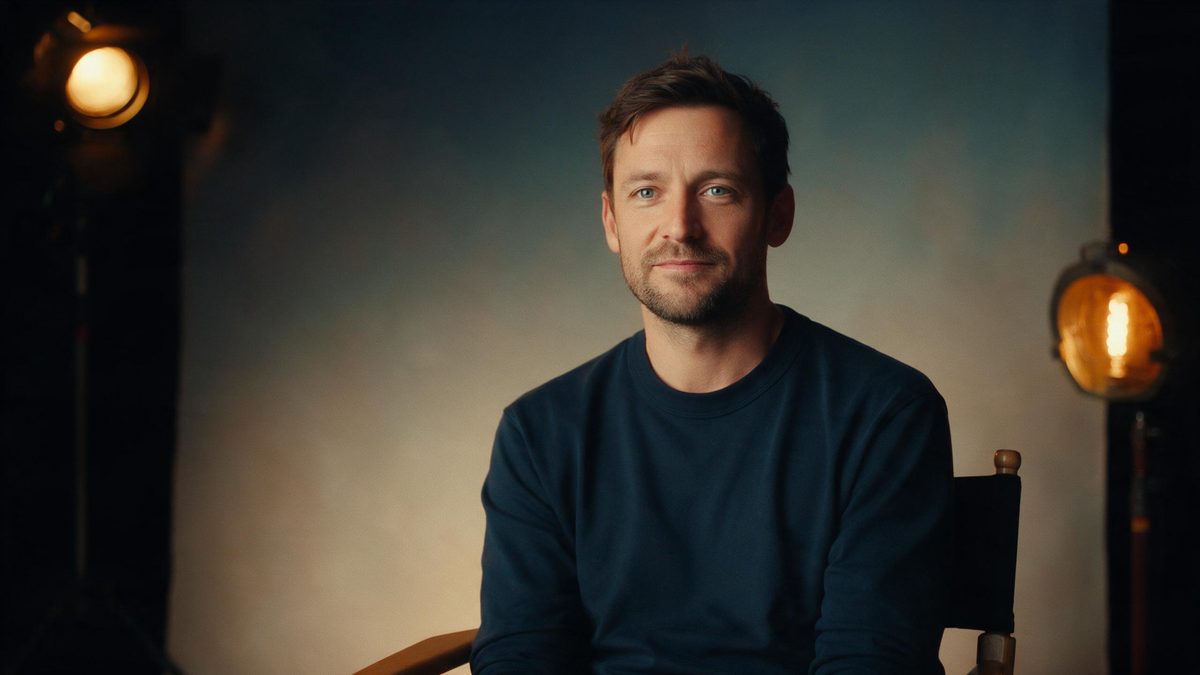
AI avatar takes a single portrait and a written script and returns a talking avatar video inside the browser workspace at app.openfilmo.com, with nothing to install. You supply one clear photo of a person and the lines they should say, and the workspace produces a clip of that face delivering the script. The result is a spokesperson built from material you already have, rather than a shoot.
This page is about the two inputs that matter: a portrait the model can animate, and a script worth saying out loud. The tool handles the synthesis; you handle the likeness and the words. It stays honest about the limit: the avatar speaks the lines you write, it does not decide what to say, and the output is only as natural as the source photo allows.
What it does
Built for this specific job, not a generic editor.
Animate one portrait
A single clear face photo becomes the speaker. The model drives the expression and the mouth to the script, so one image is enough to start.
Speak your written script
Supply the lines and the avatar delivers them. The words are yours, so the message stays exactly what you wrote rather than something generated.
A clip, not a person
The output is a video of the likeness reading the script. It is a presentation asset, useful for explanation and updates, not a substitute for a real individual in situations that require one.
Export without a watermark
The free plan exports with no watermark and commercial use included. Paid tiers raise the credit pool and parallel tasks, but the export stays clean at every level.

How it works
Four steps, no timeline to learn.
Use a clear, front-facing portrait
A well-lit photo with the face unobstructed gives the model a clean subject to animate. Hats, heavy shadow or a turned-away angle make the result worse.
Write lines meant to be spoken
Short, direct sentences read better than long written prose. The avatar delivers the script aloud, so write for the ear, not the page.
Generate and watch the mouth
Play the clip and check that the speech and the movement stay in step. A take where the lips lag the audio needs a regen, not a publish.
Trim to the message
Cut the dead starts and ends so the clip opens on the first line. A tight avatar video holds attention better than a long one.
What people use it for
The jobs this actually gets used for.
A spokesperson for updates
A recurring face delivering routine announcements keeps a channel consistent without booking a presenter for every message.
An explainer in a voice
A portrait reading a short explanation turns a written note into a personal clip, which lands differently in a feed.
A multilingual messenger
The same portrait can deliver the same script in different languages, keeping the face familiar across markets.
A quick greeting
When the ask is small, a portrait reading a few lines is faster than a full recording setup and ready to send.
Why the source photo sets the ceiling
The avatar can only animate the face you give it.
A talking avatar is synthesis, not a performance. The model drives the expression and the mouth from your portrait and your script, so the naturalness of the result is bounded by how clean the source photo is. A clear, front-facing, well-lit portrait animates believably; a shadowed or angled one drifts at the edges. The photo is the real creative input.
The words are yours to control. Because the avatar speaks the script you write, the message stays exact, which is the point for announcements and explanations. Writing for the ear — short, direct sentences — reads better than prose written for the page, and it is the part no generation can improve for you.
Use it for what it is. An avatar clip is a presentation asset for explanation and updates, not a stand-in for a real person where one is required. Keep the take whose speech stays in step with the movement, trim the dead air, and treat the output as a spokesperson you built, not a person you filmed.
Credits and plans
Every tool draws on one shared credit balance.
One AI avatar run costs 40 credits from the same balance used across the workspace; image and video generation share that pool. Free is $0 a month for 30 credits with no credit card, enough for a few short clips, and it includes commercial use with no watermark on export. Starter is $9 for 400 credits, Pro is $19 for 1,000, and Studio is $59 for 4,000 with API access; figures are those listed on the pricing page in November 2026. Supply a clear portrait first, because the credit cost is per run.
Related guides
Longer reads on the same workflow, from the OpenFilmo blog.
How to Use HeyGen: Avatars and Video Translation
How to use HeyGen for avatar video and translation: creating an avatar, writing scripts that sound natural, lipsync quality, trans…
How to Use Synthesia: Enterprise Training Video
How to use Synthesia for enterprise training video: building courses from scripts, avatar options, brand consistency, localisation…
AI Lipsync and Dubbing: A Production Workflow
How to produce usable AI lipsync and dubbing: script preparation, voice selection, timing, when to re-cut instead of syncing, and …
Character Consistency in AI Video: What Actually Works
How to keep characters consistent across AI video shots: reference images, prompt discipline, key frame locking and post-hoc corre…
Related tools
Closely related pages on the same problem.
Frequently asked questions
How many credits does one avatar run cost?
One AI avatar run costs 40 credits from the shared balance. The free plan gives 30 credits a month with no card, enough for a few short clips; paid plans start at $9 for 400 credits.
What photo should I use?
A clear, front-facing, well-lit portrait with the face unobstructed. Heavy shadow, a hat or a turned-away angle makes the animated result worse.
Does it write the script for me?
No. You supply the lines and the avatar delivers them, so the message stays exactly what you wrote rather than something generated.
Are exports watermarked?
No. Every plan, including free, exports with no watermark and commercial use included.