
Transformation effect
Turn a Photo Into a Mermaid Transformation
A 4-second clip that grows a mermaid tail on the subject of your photograph. One upload, 40 credits, 720p, with the transition limits stated up front.
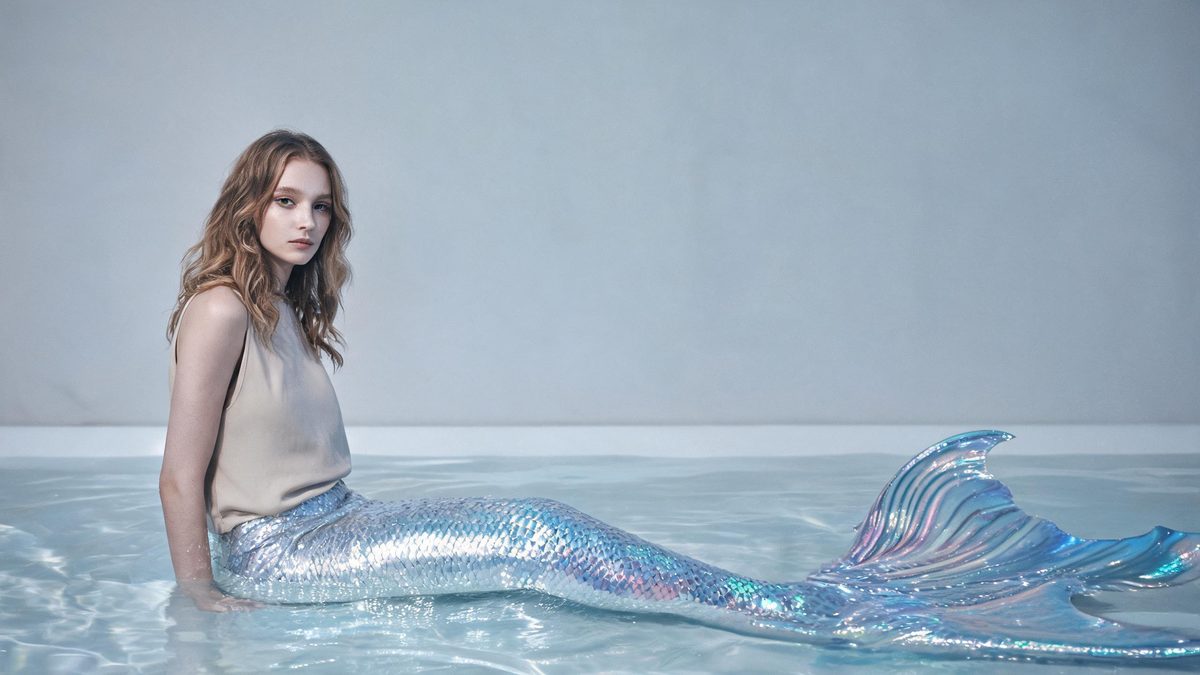
A mermaid transformation is one of the few effects that changes the shape of the subject without changing who they are. The template takes a single photograph and animates the lower body into a tail while the face and upper body carry over, which is why it reads as the same person becoming something else rather than as a costume swap.
The output is a 4-second 720p video at 40 credits per run, and the frame follows the aspect ratio of your source. It accepts one person, a pair, or a pet in a single photograph. The moments worth watching are the middle of the change, where eyebrows can blur, and the seam between frames, where the transition can run unevenly.
Specs at a glance
Straight from the product panel, not from a marketing deck.
- Output
- 4-second video
- Credits
- 40 per run
- Resolution
- 720p
- Aspect ratio
- Matches your input photo
- Input
- 1 photo — one person, a pair, or a pet
- Best results with
- A front-facing half-body or full-body shot
- Known limits
- Eyebrows can blur during the change, and the transition itself can run unevenly from one frame to the next.
What it does
Built for this specific job, not a generic editor.
A tail built around the existing pose
The lower body is converted rather than replaced wholesale, so the subject keeps their stance and the clip reads as one continuous figure. That continuity is what separates a transformation from a cut to a different picture.
One photo covers person, pair, or pet
The template accepts a single person, two people, or a pet in the same upload slot. A couple can share one frame, and a pet can take the effect on its own, without separate runs or a second tool.
Source proportions preserved
The finished clip inherits the photograph aspect ratio instead of forcing a fixed frame. A tall portrait and a wide landscape each keep their shape, so the composition you shot is the composition you get back.
Pose-tolerant by design
Because the change anchors to the figure in the photo, an upright standing pose and a seated pose both give the effect something to build on. A front-facing half-body or full-body frame gives it the most to work with.
How it works
Four steps, no timeline to learn.
Choose a front-facing frame
Select one photograph where the subject faces the camera and is framed at half body or full body. A clear view of the torso and legs gives the tail a body to attach to rather than an outline to guess at.
Decide who is in the shot
A single person, a pair, or a pet all work in one upload. For a pair, leave space between the two figures so each keeps a readable silhouette; for a pet, a clear side-on or front-on view converts more steadily.
Run it and confirm the credit cost
Add the photo to the mermaid transformation effect and check the panel before confirming. Each run uses 40 credits from the shared balance, and the amount is displayed in advance.
Review the middle of the change
Play the 4-second 720p result and pause around the midpoint of the transition. That is where eyebrows can soften and where the change between frames can look uneven, so it is the section to judge before you post.
Where people use it
The jobs this effect actually gets used for.
Fantasy and character posts
A portrait becomes a fantasy reveal for a storytelling account or a cosplay feed. Use an upright pose with the face clearly visible so the viewer recognises the subject through the change.
Pair and couple concepts
Two people in one photograph can both take the transformation, which suits a paired reveal. Frame them with a gap between their outlines so neither figure is lost while the tails form.
Pet content
A pet photograph works on its own in this effect, which turns an ordinary animal portrait into a fantasy image. A clean side-on shot with the whole body visible gives the change the clearest line to follow.
Seasonal and event themes
Underwater, summer and costume themes give the clip a natural home in a content calendar. Because the frame follows the source, a vertical portrait drops straight into a story placement.
Why the transition frame is the part to watch
The interesting failure mode here is not the end state but the middle of the change.
Effects that convert a shape tend to be judged on their final frame, but this one asks to be judged in motion. The template keeps the subject in place and rebuilds the lower body, which means most of the clip is spent between the two states. That is also where the named limits sit: eyebrows can blur during the change, and the transition can look uneven from one frame to the next. Watching the middle of the clip, not only the last frame, is how you tell whether a given photograph cooperates.
The input list is wider than a portrait-only template, which changes how you prepare a source. One person, a pair, or a pet all fit a single upload slot, but each benefits from the same underlying condition: clear separation of the subject from the background. Where a pair stands shoulder to shoulder, or where a pet is partly hidden by furniture, the effect has less shape to follow and the result is less predictable.
Aspect ratio is inherited, so the decision about how the clip will be used belongs to the moment you choose the photograph. A vertical portrait suits a story or a short-form feed, while a landscape suits a player or a thumbnail. Preparing for that placement first is more reliable than cropping the finished video afterwards, because the tail and the framing are generated together.
Credits and plans
Every effect draws on one shared credit balance.
Each mermaid transformation video uses 40 credits from the shared OpenFilmo balance, with the charge shown before confirmation. The Free plan includes 30 credits each month with no credit card required. Starter is $9 for 400 credits, Pro is $19 for 1,000, and Studio is $59 for 4,000.
Related guides
Longer reads on the same workflow, from the OpenFilmo blog.
Image to Video AI: Animate Any Photo in Seconds
A complete guide to image to video AI: what makes a good source image, how to write motion prompts, top use cases, and how to fix …
Character Consistency in AI Video: What Actually Works
How to keep characters consistent across AI video shots: reference images, prompt discipline, key frame locking and post-hoc corre…
AI Video Prompt Formulas That Hold Up in Production
Prompt structures that work for AI video: subject, motion, camera, time and style — with tested formulas, failure patterns and a m…
Related effects
Same family of effects, on the same kind of input.
Frequently asked questions
What can I upload to the mermaid transformation?
One photograph containing a single person, a pair, or a pet. A front-facing half-body or full-body frame gives the effect the clearest figure to work from, whether the subject is one person, two people, or an animal.
How much does a mermaid transformation video cost?
A run costs 40 credits, and the amount is shown before you confirm. That one charge covers the complete four-second clip, and there is no separate upload or preparation step for the tail.
What resolution and length does it produce?
The result is a 4-second video at 720p. Its aspect ratio matches the photograph you uploaded, so a vertical portrait stays vertical and the clip slots into the placement you prepared for.
Why do the eyebrows look soft in the middle of the clip?
Eyebrow blur during the change is one of the documented limits of this effect. It is most visible around the midpoint of the transition, which is why reviewing the middle of the clip matters as much as checking the final frame.
Does it work with more than one person?
Yes. A pair fits the same single-upload slot, and a pet works on its own as well. Leave clear space between two subjects so each keeps a readable outline while the transformation runs.