
Retouch a Portrait by Editing, Not Filtering
Retouching is the discipline of removing what distracts and keeping what identifies. The tool should do the first without erasing the second.
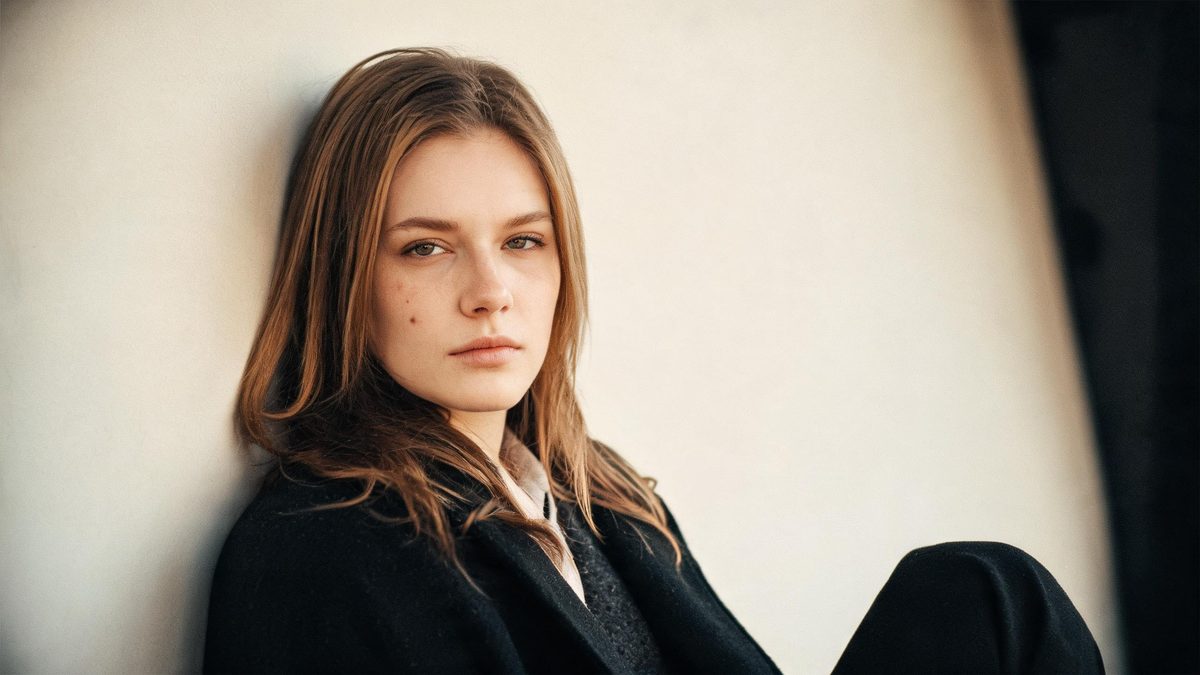
AI photo retouch, here, is the narrow job of cleaning a portrait: easing skin texture, lifting a stray blemish, recovering a soft edge, taking down a glare. The workspace is OpenFilmo and runs in the browser at app.openfilmo.com with nothing to install. You upload one photo, mark what to address, and review the result before exporting — the point is a cleaner picture, not a different person.
This page stays with still portraits and the judgement of how far to go. Brightening an underexposed shot, restyling a face, or generating a new backdrop are separate jobs on the face editor and image enhancer pages. If what bothers you is noise and a spot rather than the whole face, stay here; if it is the face itself, the other pages are where that work lives.
What it does
Built for this specific job, not a generic editor.
Skin texture, not skin removal
The retouch eases uneven texture and visible pores without melting the skin into a flat surface. Keeping micro-detail is what stops a portrait from looking processed, because a face with no texture reads as a render the moment it is viewed at full size.
Targeted blemish and stray-mark lifting
A spot, a scratch on the print, a catchlight that went wrong — these are addressed as local corrections rather than a blanket blur, so the area around them stays sharp. Local work costs the same one edit and looks far more natural than a global smooth.
Edge and detail recovery
A soft lens or a low-resolution source loses the crispness that makes a portrait feel intentional. The editor recovers edges and fine detail where the original held them, without inventing sharpness the file never captured, which is the line between enhance and fake.
One edit, shared credit balance
Each completed retouch is one entry against a single balance shared with the rest of the workspace, at the same two-credit rate as any other face edit. You are billed per edit kept, so a careful before-and-after is cheaper than regenerating to chase a single spot.
How it works
Four steps, no timeline to learn.
Start from the largest problem
Fix exposure and crop before touching skin. A portrait that is correctly lit and framed needs far less retouching, and reaching for skin smoothing first is what produces the over-processed look people distrust.
Retouch locally, not globally
Address the blemish, not the whole cheek. Local corrections keep the surrounding skin honest and make the fix invisible, whereas a global blur announces itself the instant the image is seen at full size.
Check at full size before exporting
Free gives 30 credits a month, about fifteen edits, so a portrait can be tried more than once. Zoom to actual pixels on the review, because a smoothed area that looks fine thumbnail-sized often betrays itself at print resolution.
Keep the identifying marks
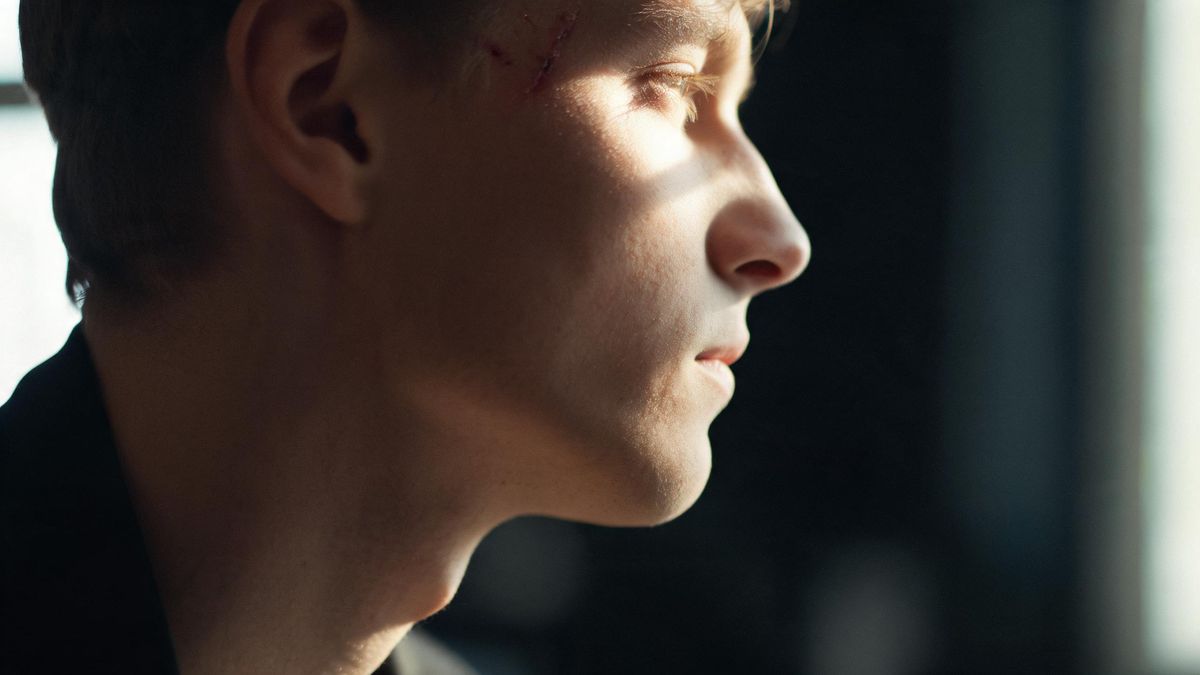
A freckle, a line, the shape of an ear — these are what make the person recognisable. Removing them to chase a flawless surface trades identity for polish, and the result is a face no one in the room would recognise.
What people use it for
The jobs this actually gets used for.
A headshot that needed a clean-up
One blemish and a soft edge stand between a usable portrait and a rejected one; a local retouch clears both without reshooting.
An old print brought back
A scanned photograph with a scratch and soft detail recovers enough to reprint or post, with the original face left intact.
A product face in a campaign
When a face appears beside a product, a tidy retouch keeps attention on the offer instead of a stray mark, without altering who the person is.
A social portrait, lightly finished
Easing texture and a catchlight gives a casual portrait a finished feel while still looking like the same person who took the photo.
Why less retouching is more
The goal is a portrait someone recognises, not a surface with no history.
Retouching fails most often by going too far, because the tool makes it easy to keep smoothing until the face no longer has texture. A portrait with no pores and no lines is a portrait with no identity, and viewers read that absence as fake faster than they read any single blemish as a flaw. The discipline is to remove what distracts and stop.
Local correction is the mechanism that makes restraint possible. Addressing one spot rather than the whole cheek keeps the surrounding skin honest and the fix invisible, and it costs the same single edit. The work that looks the most natural is almost always the most targeted, which is why a global blur is rarely the right move even when it is the fastest.
Cost rewards the same patience. One edit is two credits and Free covers about fifteen, so a portrait can be refined across a few attempts — but only if each attempt changes one thing. Regenerating to chase a single mark that a local correction would have fixed is where the credit balance disappears without the image improving.
Credits and plans
Every tool draws on one shared credit balance.
One retouch costs two credits and is drawn from a single balance shared with the rest of the workspace; image-to-video and text-to-video use the same models at the same rate. Free is $0 a month for 30 credits with no credit card, which is about fifteen edits, runs one task at a time at standard speed, exports with no watermark and includes commercial use. Starter is $9 for 400 credits, Pro is $19 for 1,000, and Studio is $59 for 4,000 with API access. Prices are those listed on the pricing page in October 2026.
Related guides
Longer reads on the same workflow, from the OpenFilmo blog.
Image to Video AI: Animate Any Photo in Seconds
A complete guide to image to video AI: what makes a good source image, how to write motion prompts, top use cases, and how to fix …
AI Video Watermarking and C2PA: Provenance Explained
How AI video watermarking, embedded metadata and C2PA content credentials differ, what survives re-encoding and screenshots, and h…
9 Best Pollo AI Alternatives in 2026 (Compared)
An honest 2026 comparison of the best Pollo AI alternatives: OpenFilmo, Runway, Kling, Hailuo, Luma and HeyGen compared on price, …
Related tools
Closely related pages on the same problem.
Frequently asked questions
How much does one retouch cost, and what does Free cover?
Two credits per edit, from one balance shared across the workspace. Free gives 30 credits a month with no credit card — about fifteen retouches — and includes commercial use and exports with no watermark. Paid plans start at $9 for 400 credits.
Will it remove my freckles and lines?
It can, but it should not. The retouch eases texture and stray marks while keeping the detail that makes a face recognisable; removing identifying features trades identity for polish and is almost never the goal. Local corrections leave the surrounding skin honest.
Can it fix an old or scanned photo?
Yes — recovering a soft edge and lifting a scratch on a scan is a common use, as long as the original held the detail the editor can sharpen. It will not invent sharpness the file never captured, so a very low-resolution scan has a ceiling.
Is this the same as a beauty filter?
No. A filter applies one global change to the whole face; this is targeted editing of specific distractions while the rest of the portrait stays as shot. The result is meant to look like the same person, lightly finished.
Can I use the result commercially?
Yes — commercial use is included on Free as well as paid plans, and exports carry no watermark. You remain responsible for having the right to use the portrait you upload.