
AI Image to Video: Turn Any Photo Into a Moving Clip
A still is the cheapest asset you own and the least persuasive. Give it one clear movement and it starts doing the work of a shoot — as long as the movement is specific.
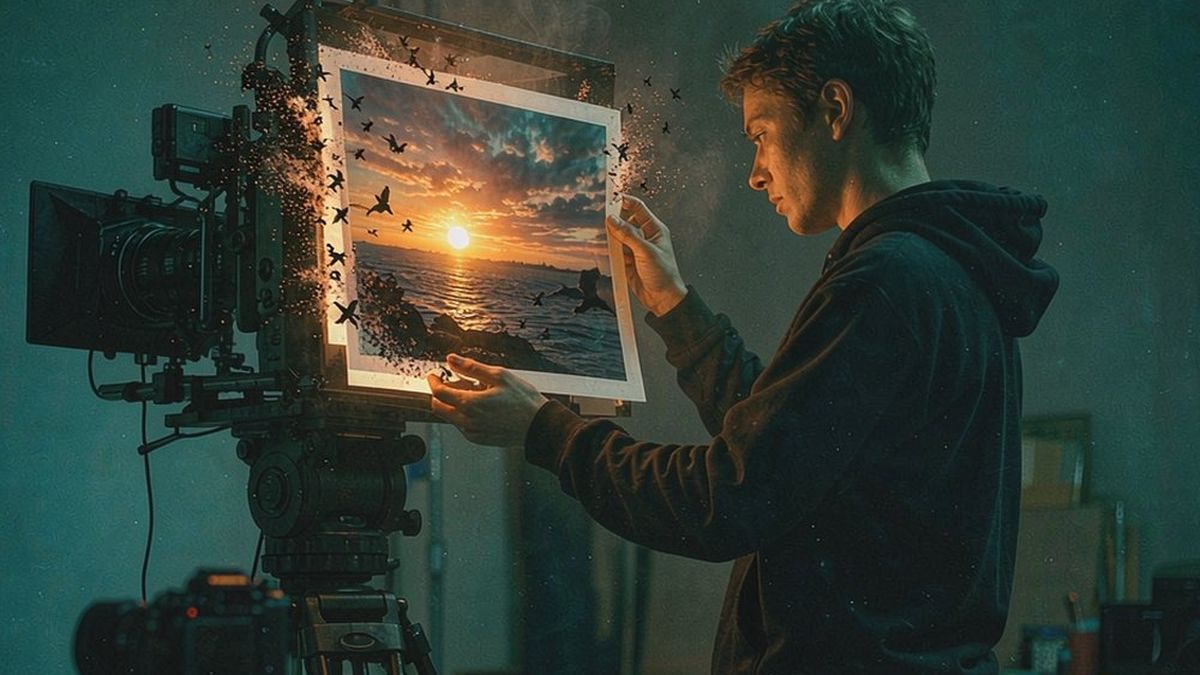
Image to video is the highest-value entry point into AI video, because almost everyone already has the input. A product shot, a portrait, a room, a painting — anything that sits still can be given one motion and become a clip.
The variable that decides the result is not the model, it is the instruction. "Slow rotation on a white background, soft studio light" generates something usable. "Luxury" does not. Concrete camera and motion language is the whole skill, and it is cheap to iterate on at 5 credits per five-second attempt.
What it does
Built for this specific job, not a generic generator.
Animate any still
Product shots, portraits, interiors, illustrations and artwork all work as inputs.
Controllable motion
Describe the movement — a rotation, a push-in, a drift, a pour — rather than a mood.
Any aspect ratio
Export 9:16 for Reels and TikTok, 1:1 for feed, 16:9 for pages and PDP galleries.
Finish in the same tab
Captions, music, voiceover and a 4K upscale without exporting to another app.
How it works
Four steps, no timeline to learn.
Pick the highest-resolution source
Motion amplifies whatever detail exists. A low-resolution photo produces a low-resolution clip at any setting.
Describe the movement, not the mood
Write camera language: a slow push-in, a 30-degree rotation, a gentle drift left. Avoid abstract adjectives.
Generate short, then extend
Five seconds first. If the motion reads well, generate more — do not spend a long render on an untested instruction.
Finish and export per channel
Add captions and sound, choose the aspect ratio, export. Repeat per placement from the same generation.
What people make with it
The jobs this actually gets used for.
Product listings
A packshot that turns or pours, giving a listing motion without a studio day.
Portraits and headshots
A subtle drift or light change that makes a still feel shot rather than scanned.
Interiors and property
A slow push through a room so a listing conveys depth from one photograph.
Social and story formats
Vertical motion pulled from existing photography, posted the same day.
Why the prompt is the whole skill
Same model, same photo, wildly different results depending on one sentence.
Image to video fails most often on vagueness. Abstract adjectives — cinematic, luxury, dynamic — leave the model to invent a movement, and what it invents is usually too fast, too wide or applied to the wrong part of the frame.
The fix is to describe camera and motion rather than feeling. Direction, speed, axis and lighting are all things a model can act on. "Slow rotation, soft studio light, camera static" is a specification; "premium product film" is a wish.
Because an attempt is 5 credits for five seconds, the cheapest way to learn this is to run three variants of one instruction on the same photo. The differences are more instructive than any guide, and the whole experiment costs less than a stock clip.
Credits and plans
Generation is metered in credits, shared across every tool.
A five-second video costs 5 credits and one image costs 2. The Free plan gives you 30 credits every month with no credit card, no watermark and commercial use included. Paid plans start at $9 for 400 credits and add faster generation, parallel tasks and higher export resolution.
Related guides
Longer reads on the same workflow, from the OpenFilmo blog.
Image to Video AI: Animate Any Photo in Seconds
A complete guide to image to video AI: what makes a good source image, how to write motion prompts, top use cases, and how to fix …
AI Video Prompt Formulas That Hold Up in Production
Prompt structures that work for AI video: subject, motion, camera, time and style — with tested formulas, failure patterns and a m…
Character Consistency in AI Video: What Actually Works
How to keep characters consistent across AI video shots: reference images, prompt discipline, key frame locking and post-hoc corre…
AI tools
Single-purpose tools that run in the same workspace, on the same credit balance.
Vidu models
The Vidu Q1 and Q2 models this site runs on, and how they compare to Kling, Veo and Runway.
Related workflows
Closely related tools and guides on the same problem.
Frequently asked questions
What kinds of images work best?
High-resolution images with a clear subject and clean separation from the background. Product shots on white, portraits and interiors all animate well.
How do I describe the motion?
Use camera language: a slow push-in, a 30-degree rotation, a gentle drift. Avoid mood words like cinematic or luxury, which leave the movement undefined.
How long a clip can I generate?
Generate in five-second units at 5 credits each. Test one unit first, then extend once the motion reads correctly.
How much does it cost?
A five-second video costs 5 credits. The Free plan gives 30 credits per month with no credit card, so several tests cost nothing. Paid plans start at $9 for 400 credits.
Can I export vertical?
Yes. 9:16 for Reels, TikTok and Shorts, 1:1 for feed placements, 16:9 for pages and galleries — from the same generation.
Will it add detail my photo does not have?
No. Motion amplifies existing detail, it does not invent it. Start from the highest-resolution source available.
Can I add captions and music?
Yes, in the same workspace. Captions, voiceover, music and a 4K upscale are all available without exporting to another tool.
Is the output watermarked?
No. Exports are watermark-free on every plan including Free, and commercial use is included.
Can I upscale the result?
Yes. A 4K upscale costs 4 credits and should come after the motion is right, not before.