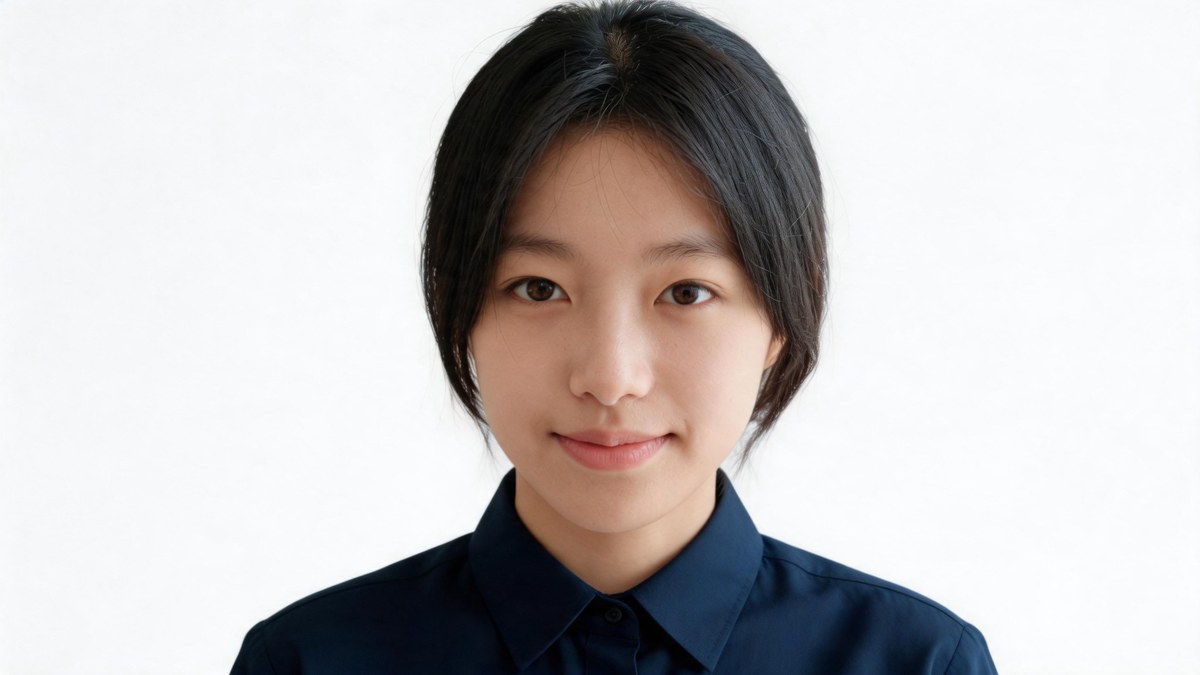
White background
The most common standard for passports and visas. Clean, even, and easy to place into any application form.
Generate white, blue or red background ID photos — no face retouching by default
Upload a file to start
AI ID photo / Cloud tool
A passport, a visa, a licence — they all ask for the same thing: a plain background, a centred face, the right framing. This tool turns one portrait into a white, blue or red background ID photo, with the face kept exactly as uploaded. Upload once, pick a background, download.
Quick answer: OpenFilmo's AI ID photo generator is a cloud tool for ID photos. You upload one portrait, pick a background (white, blue or red), and the tool centres the face and replaces the backdrop so the result reads as a standard ID, passport or visa photo. The face is kept unchanged by default, a light retouch is optional, and each photo costs 30 credits.
Limitation: The tool changes the background and the framing, not your face — retouching is off by default. It produces a compliant-looking photo, but it is not a certification of official acceptance: pixel size, crop and recent-photo rules differ by country and document authority, so check the exact spec before you submit.
Verified: 15 November 2026 — checked against the live AI ID Photo tool page and the app pricing page.
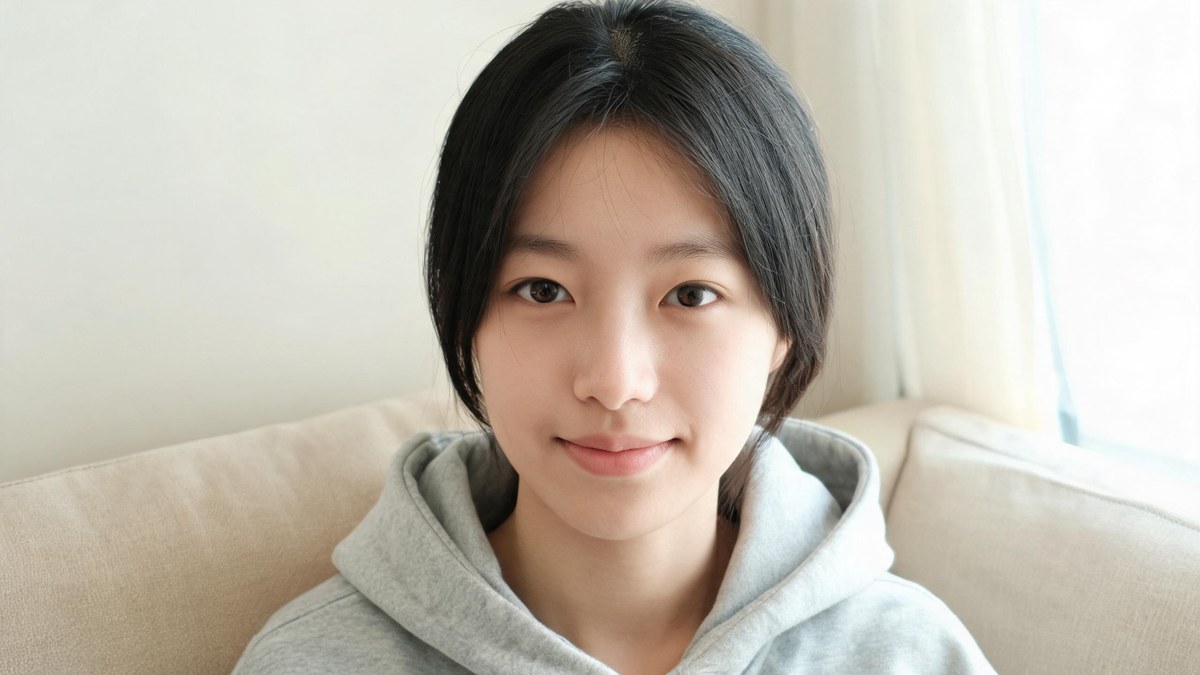
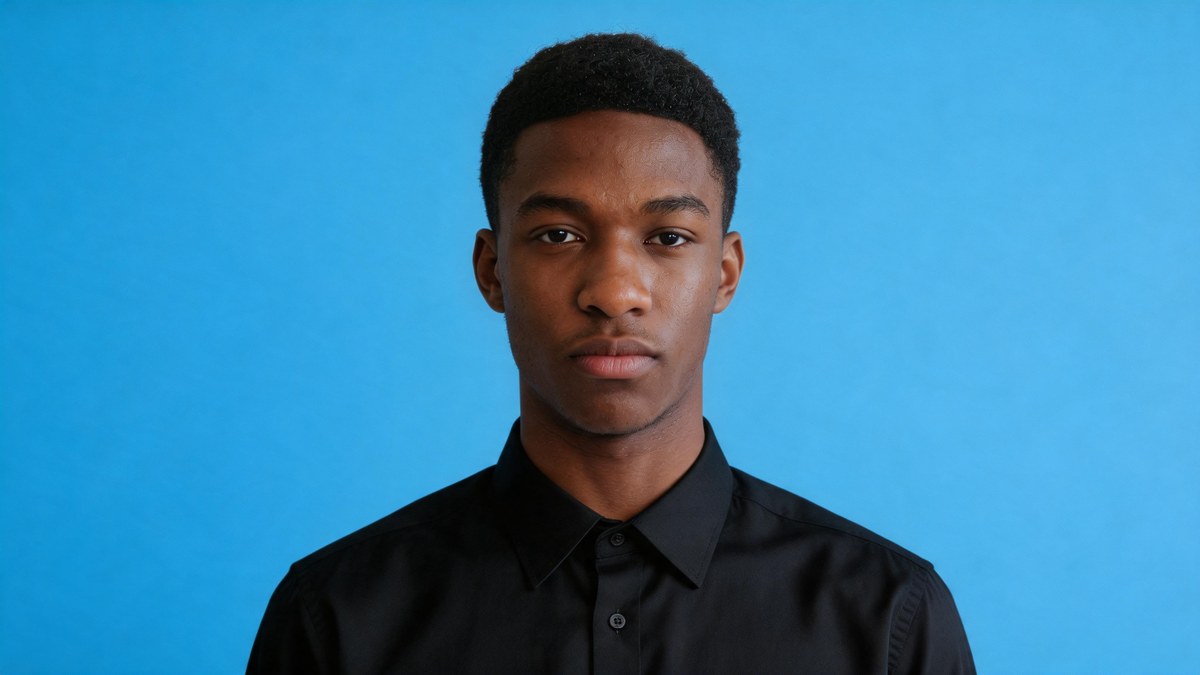
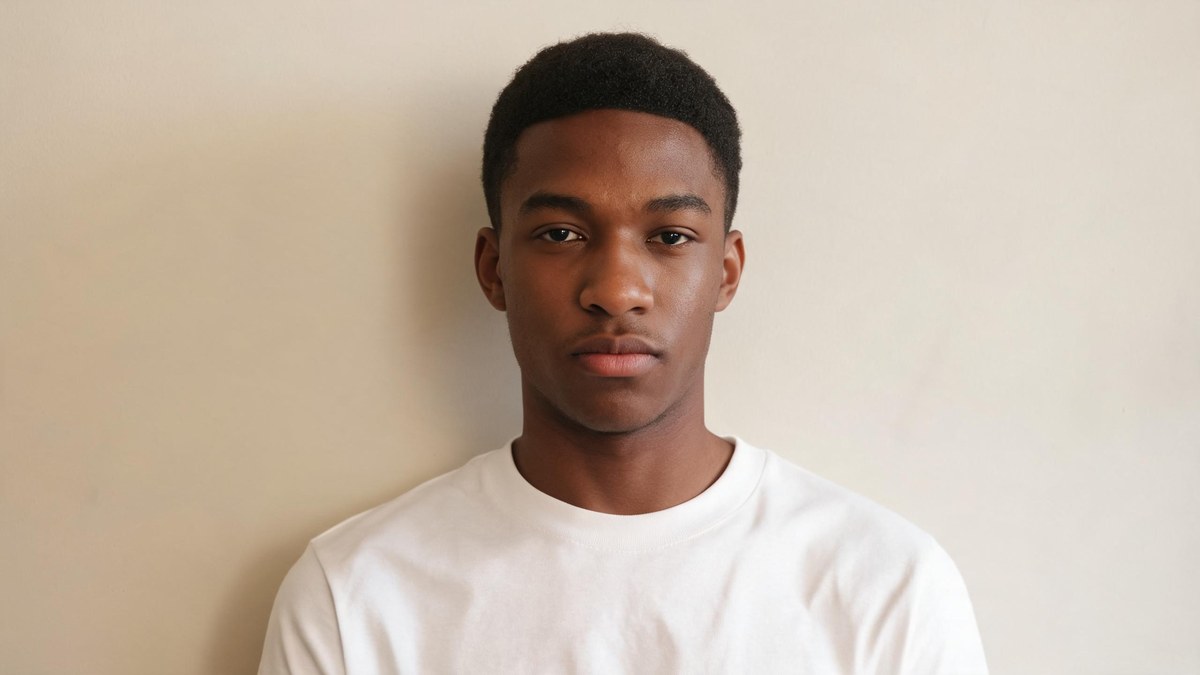
An ID photo is mostly about the setting, not the person. Nothing about the face needs to be corrected for a document photo — it needs a plain, evenly lit background and the head and shoulders centred in a standard crop.
That is exactly what is generated here: the backdrop is replaced, the face is kept, and the framing is normalised so the result can go into a form. If your source portrait is already well lit and facing the camera, the first pass is usually the one you keep.
The tool does not hand you a generic headshot. It builds the three background standards most authorities ask for, keeps the face as uploaded, and lets you switch the backdrop without a new sitting.
The most common standard for passports and visas. Clean, even, and easy to place into any application form.
Required by many visa and residency authorities. A solid, correctly toned blue that reads as official.

Used for several national ID and document types. A clean red backdrop with the face centred and unchanged.
Off by default. Turn it on only if you want a softer finish; the face is never altered unless you choose to.
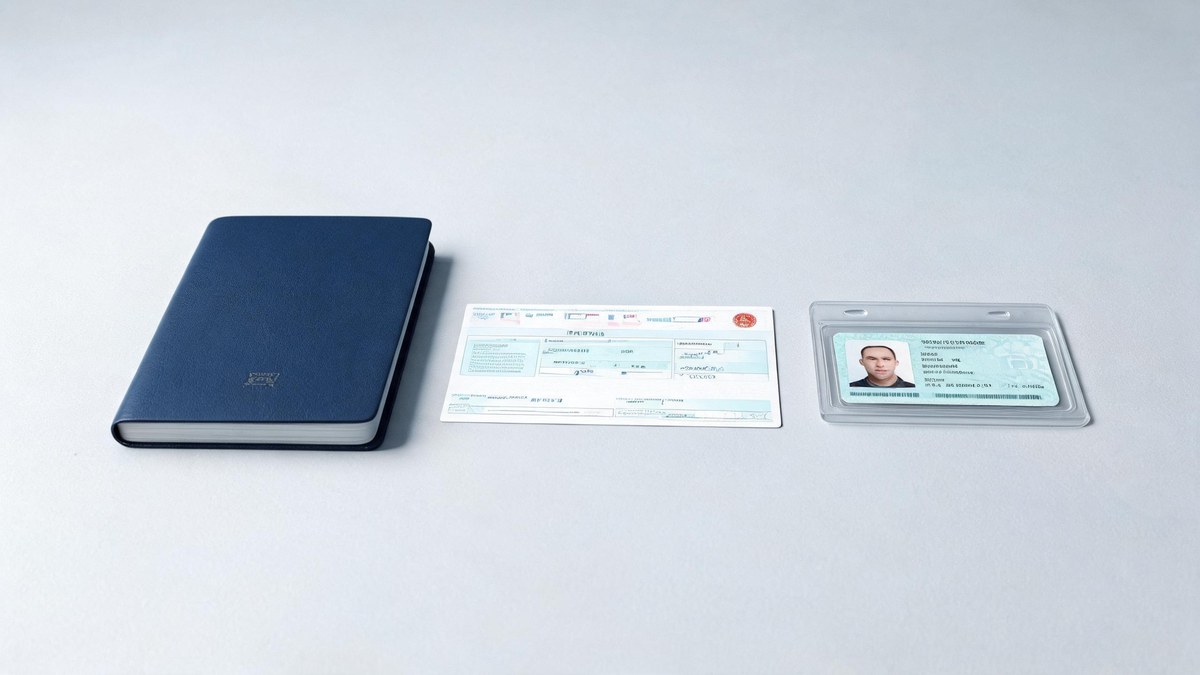
The face you upload is the face you get back. The tool keeps it, centres the head and shoulders to a standard ID framing, and replaces only the background — so one sitting can produce white, blue and red versions without a new photo each time.
That single, linked pass is also why the face stays recognisable: nothing about the person is regenerated or stylised unless you switch on light retouch. A well-lit, forward-facing portrait lands in spec on the first try; a dim or tilted upload is the one thing worth fixing before you generate.
For a single still that needs the same clean treatment outside an ID context, the image enhancer covers the steps that come before a formal photo.
An ID photo is rarely the goal. It is the step between an application that sits unfinished and one that gets sent. These are the situations where that step tends to matter.
Passport and visa
Generate the white or blue background your passport or visa office asks for, with the face centred and unchanged, in a couple of minutes.
Job and resume
Skip the studio for an internal badge or a profile photo. A plain backdrop reads as professional without looking like a stock image.
School and student ID
Produce the red or blue version a school or exam authority needs, then reuse the same centred framing across forms.
Licence and forms
Swap backgrounds to match each authority's rule, then crop to the local pixel size before you submit. The face stays the same every time.
There is no appointment, no backdrop stand and no retake queue. Generation runs in the cloud and the result downloads when it is ready.
Add one clear portrait of the person who needs the ID photo. The tool uses the face as-is and keeps it unchanged by default.
Choose white, blue or red. The tool replaces the background and centres the head and shoulders to a standard ID framing.
Generate the photo and download it. Light retouch is a checkbox you can leave alone; each photo costs 30 credits.
Most ID photos finish in a couple of minutes. If you also need the same person in a different frame — a headshot for a badge, or a portrait for a profile — the AI headshot tool runs from the same upload folder.

The tool's job is narrow and deliberate: change the background and the framing, leave the face alone. That is also its main limit. A generated ID photo is a clean copy of your portrait on a standard backdrop — it does not smooth skin, reshape features or edit the person unless you ask it to.
In practice the three things that decide whether the result is usable are all in the source photo: the face is lit evenly, it is roughly forward-facing, and nothing obscures the eyes. Fix those before uploading and the background swap is the easy part.
On background only
It changes the background and the framing. It does not reshape features, and it does not swap clothing beyond what the source shows.
On face retouching
Retouching is off by default, so the face is returned exactly as it was captured. Light retouch is optional and only applies if you switch it on.
On exact spec and sizing
ID dimensions, crop ratios and recent-photo windows vary by authority. The tool centres the face; you still crop and verify against the local rule before submitting.
On official acceptance
It produces a photo that looks compliant, not a certification. Some authorities require a photo taken by an approved provider — check before you rely on a generated image.
There are several ways to get an ID photo made. Most cost either money, time or a trip; the right choice depends on what the document is for.
| Approach | What it costs | Compliant background | Face unchanged |
|---|---|---|---|
| Photo booth or studio | A trip, a fee, and a retake if it is wrong | Yes | Yes |
| Phone camera plus a crop app | Free, but uneven light and a messy backdrop | Rarely, without effort | Yes |
| DIY background swap | Time-consuming, needs editing skill, rough edges | Sometimes | Yes |
| OpenFilmo AI ID Photo | One upload, a few taps, 30 credits per photo | Yes, in one pass | Yes, by default |
Comparison reflects the documented behaviour of the OpenFilmo tool and common ID-photo workflows.
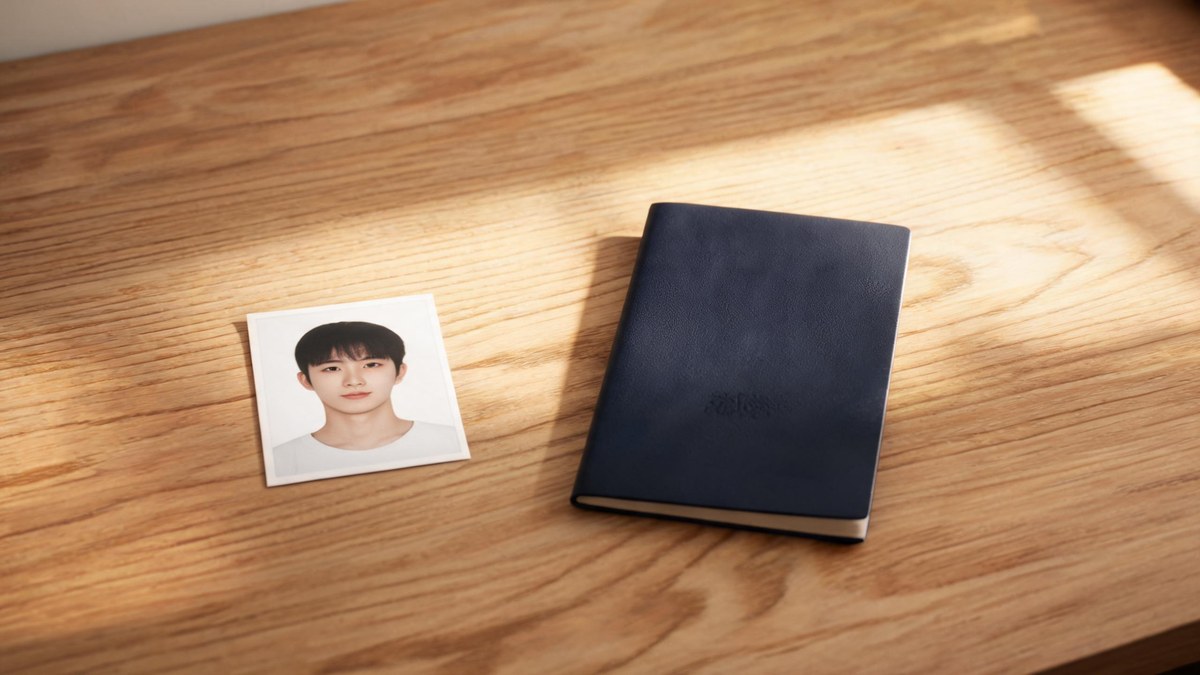
Upload one photo, pick white, blue or red, and download. No studio, no retake, and your face stays exactly as you uploaded it.