Multiple reference images to video
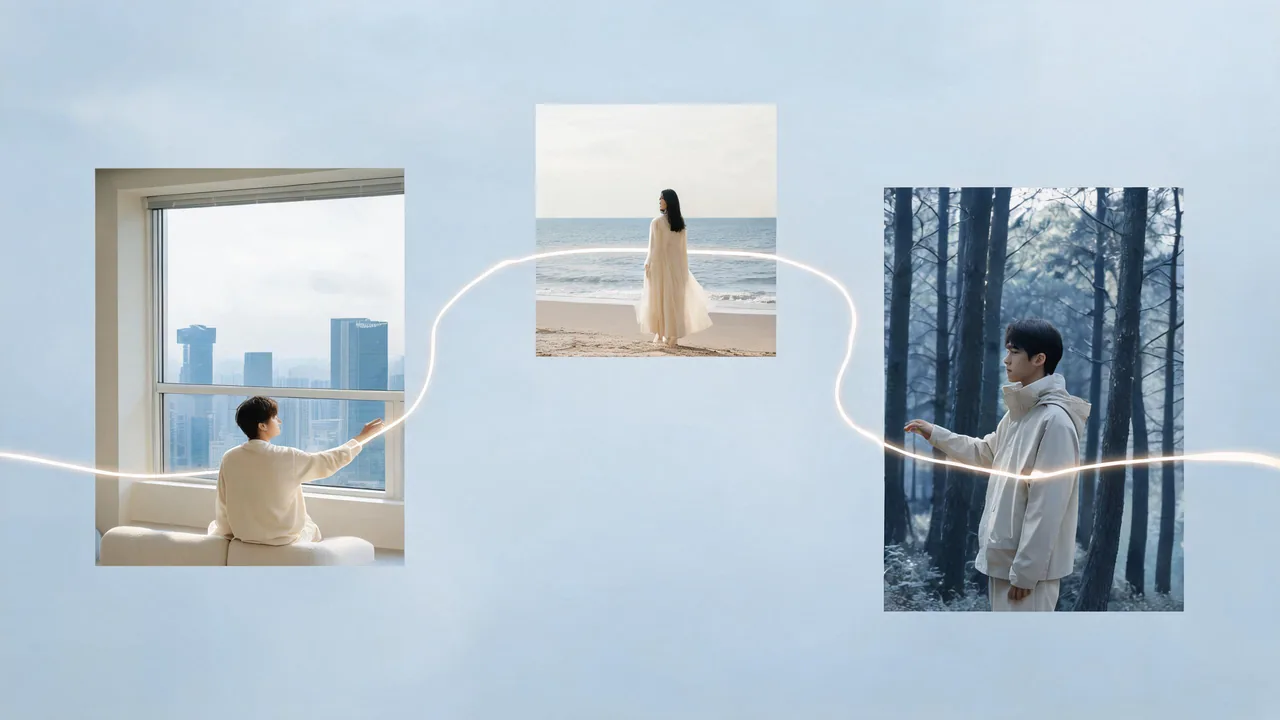
For "multiple reference images to video", OpenFilmo gives you a browser-based AI video tool: supply your source, apply one defined change, preview, then download. Free credits let you test it without a card; paid plans start at $9.99/month. It is built for single-purpose tasks and quick iterations, not for frame-accurate timeline editing.
Ready to try it? Open the corresponding tool in the OpenFilmo app.
Open in OpenFilmoFree credits to start. OpenFilmo gives you free credits in the app to start. Paid options are Pro Monthly at $9.99 for 800 credits, Pro Yearly at $99 for 9,600 credits, and one-time Starter ($4.99 / 300 credits) and Value ($14.99 / 1,000 credits) packs that never expire.
Quick answer
For "multiple reference images to video", OpenFilmo gives you a browser-based AI video tool: supply your source, apply one defined change, preview, then download. Free credits let you test it without a card; paid plans start at $9.99/month. It is built for single-purpose tasks and quick iterations, not for frame-accurate timeline editing.
What "Multiple reference images to video" covers and when to use it
"multiple reference images to video" is a specification question. Before you start, pin down the format, dimensions, duration and delivery target, because those four values decide which settings matter and which ones you can safely leave at their defaults.
Treat the specification as a contract with the destination. A marketplace listing, a vertical feed and a client delivery each impose different limits on resolution, duration, codec and file size. Write those down first, then work backwards to the export settings. It is much cheaper to produce the right file once than to re-render a finished asset because a platform rejected the codec or trimmed the frame.
Keep a short note of the settings that worked for each destination. Specifications change less often than projects do, and a single reference sheet removes most of the guesswork from the next delivery.
How it works, step by step
- List the destination limits — Record the required resolution, duration, aspect ratio, codec and maximum file size for the platform or client.
- Check the source — Confirm the input resolution and frame rate. You cannot add detail that was never captured, so set expectations accordingly.
- Choose the output settings — Match the export to the destination rather than to the largest number available. Bigger files are not automatically better.
- Run a single test — Export one representative asset and verify it in the actual destination, not just in a local player.
- Apply to the batch — Reuse the verified settings for the rest of the set and spot-check a sample from each batch.
| Parameter | What to expect |
|---|---|
| Task | Multiple reference images to video |
| Domain | AI video |
| Input | A source clip or image, or a text description where supported |
| Output | A downloadable video or image file in the aspect ratio of the source |
| Where it runs | In the browser through the OpenFilmo app |
| Cost | Free credits to start; paid plans from $9.99/month |
How this compares with the alternatives
The honest way to judge "multiple reference images to video" is to compare it with what you would otherwise do. None of these options is universally better; each trades one kind of cost for another.
| Approach | What it gives you | What it costs |
|---|---|---|
| Match the destination spec | Upload accepted first time | Requires reading the spec |
| Export the largest file | Simple | Slow uploads, possible re-encode |
| Let the platform convert | No decisions needed | Unpredictable quality |
| Guess from a previous job | Fast | Specs change between platforms |
Where teams actually use this
These are the situations where this AI video task shows up most often in practice.
- Marketplace listings — Product media with strict dimension and format rules.
- Vertical social feeds — Short clips with fixed duration and a 9:16 frame.
- Presentation and web — Lightweight files that load quickly without visible quality loss.
- Client handover — A delivery spec agreed in advance with a fixed codec and resolution.
Frequently asked questions
- What does "multiple reference images to video" actually involve?
- It is the format and specification side of a AI video task: you supply a source, the tool applies one defined change, and you get a downloadable file back. The scope is deliberately narrow so the result is predictable and repeatable.
- Do I need to install anything for multiple reference images to video?
- No. The workflow runs in the browser through the OpenFilmo app. You need a source file and an account to access the tool; there is no desktop install and no project file to manage.
- Will multiple reference images to video reduce the quality of my file?
- Any processing step can introduce artefacts if pushed too far. Use the narrowest setting that solves the problem, keep the original as a copy, and check the result at full size before exporting. A light single pass is safer than several heavy ones.
- How much does it cost to multiple reference images to video?
- OpenFilmo gives you free credits in the app to start. Paid options are Pro Monthly at $9.99 for 800 credits, Pro Yearly at $99 for 9,600 credits, and one-time Starter ($4.99 / 300 credits) and Value ($14.99 / 1,000 credits) packs that never expire.
- Can I use the output commercially?
- Yes. Every render carries full commercial rights, including assets produced with the free starting credits. You are still responsible for making sure the source images, clips and prompts you upload do not infringe someone else's rights.
- When should I not use this approach?
- For frame-accurate multicam editing, complex colour matching across cameras, or a long-form programme that needs a locked grade, a dedicated timeline editor is the better finish. OpenFilmo is a creation workspace rather than a full replacement for an NLE.
Terms worth knowing
- Credits
- The shared balance used across video, image and audio tools. Different operations consume different amounts, shown before you confirm.
- Aspect ratio
- The proportional relationship between width and height, such as 16:9 for landscape or 9:16 for vertical feeds.
- Upscaling
- Increasing the dimensions of an asset while reconstructing detail, as opposed to simply stretching pixels.
- Inference
- The model run that produces the output from your input; it happens on a server rather than on your device for cloud tools.
- Artefact
- An unintended visual defect such as banding, halos, blur or flicker introduced during capture or processing.
Related tools and guides
These related AI video guides cover the neighbouring steps in the same workflow. Links here point to the actual pages, not to a navigation menu.